Reckonar does its work before the hunt and between hunts. This guide covers the evening before: saving your Hunt Area for offline use in this browser, testing it, knowing what works without a connection, reading the date on your conditions and packing your own backup navigation. It covers the web app at app.reckonar.com. The native iPhone and Android apps come later, and the last step says what changes with them.
Save the Hunt Area offline
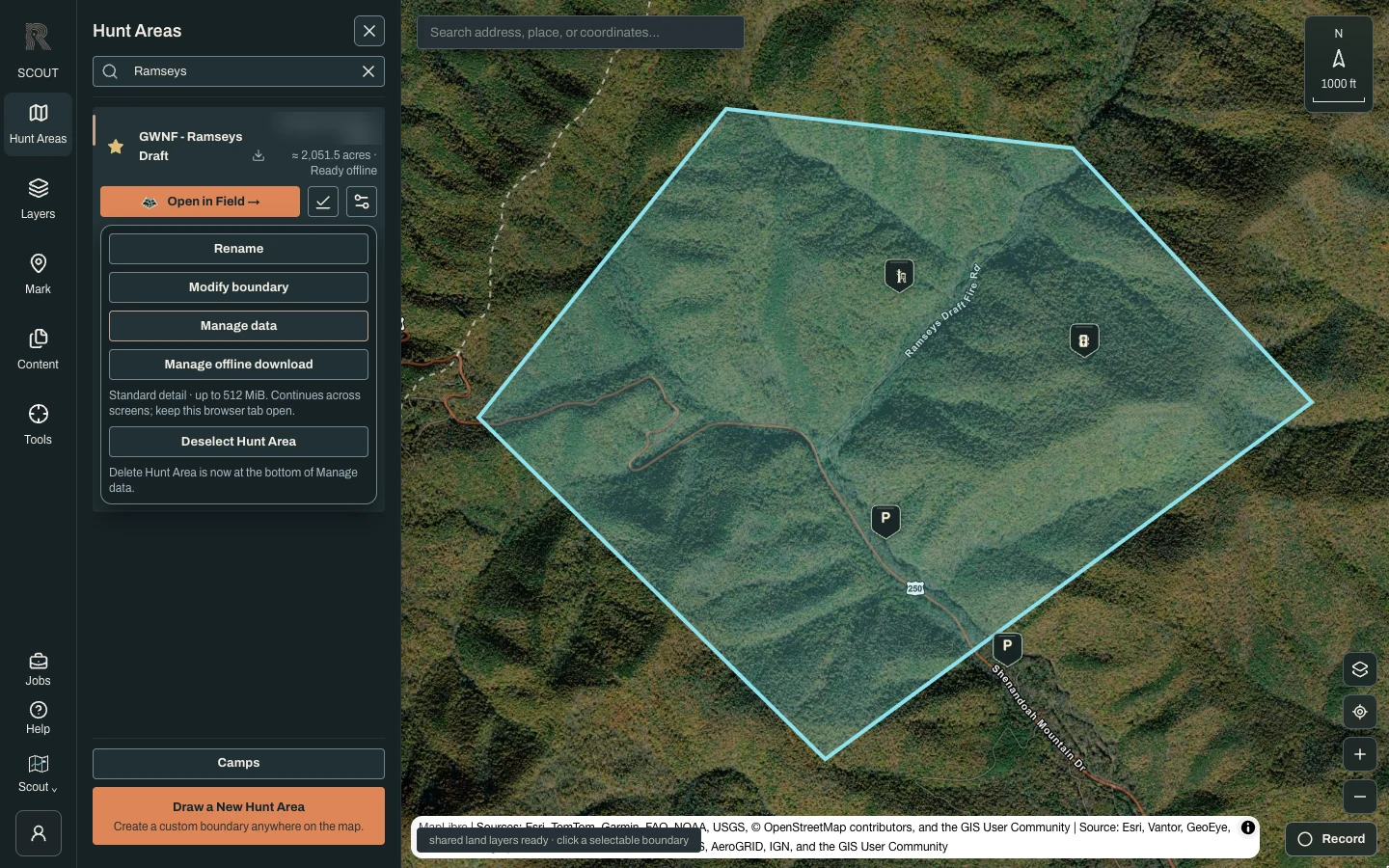
Do this at home on a good connection. In Scout, open Hunt Areas and select your area’s card. Choose the download button beside settings, labeled Save Hunt Area offline, or open settings and choose Save offline. It saves at standard detail, up to 512 MiB. The download keeps going while you move between screens, but keep this browser tab open until it finishes. Once an area is saved, the same menu item reads Manage offline download.
Watch it finish
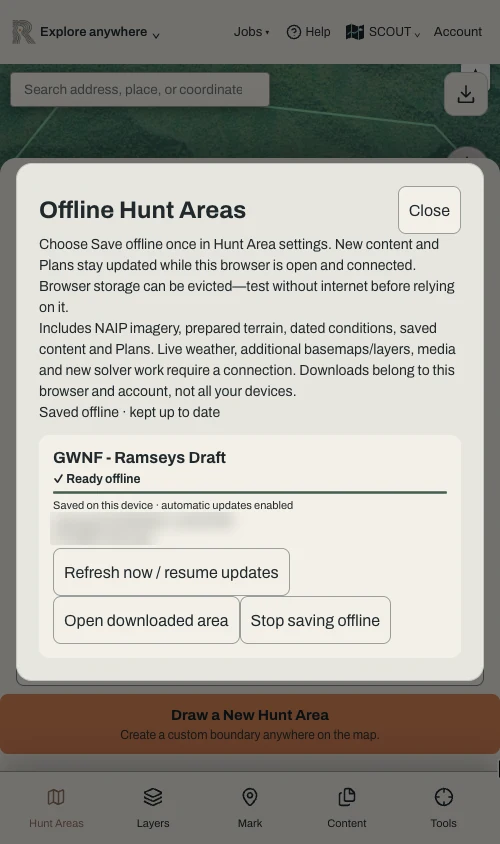
While it saves, the download button on the card spins, and the Hunt Area’s settings show Saving offline… under On this device. Choose Manage offline download there, or in the card’s settings menu, to open Offline Hunt Areas. Each saved area shows its status, with Pause download while it runs, Refresh now / resume updates, Open downloaded area once it is ready and Stop saving offline to remove it. The card’s download icon turns to a check only after every file is verified. While this browser is open and connected, new Marks and Plans keep the copy current.
Know what the download holds
It includes the area’s NAIP imagery, prepared terrain, dated conditions, saved Marks and saved Plans. It does not include live weather, other basemaps and map layers, photos and other media, or anything that needs new analysis. A Plan’s Forecast choice and the map frames that animate when you press Play are built online, so expect them to be missing offline.
Test it before you rely on it
At home, turn on airplane mode or switch off Wi-Fi, then reload app.reckonar.com in the same browser. Your downloaded area should open, and after a few seconds a strip reads “No connection · downloaded Hunt Area” with its date and “not live weather”. If it does not open, open Hunt Areas, choose the area’s download button, then Open downloaded area. Open it in Field and mount a saved Plan. The download belongs to this browser and this account only, not your other devices. Browsers can clear stored data to free space, so test again after a few days. You must sign in online first, and a download opens offline for up to seven days after Reckonar last confirmed your sign-in.
Read the date on your conditions
Offline layers use the conditions prepared when you downloaded, for that date. They are not today’s weather. A saved Plan is a seasonal read of weather history, and it does not change when the forecast does. Check a current forecast and the actual wind the morning you go, and adjust. Choosing Today’s conditions in Layers needs a connection.
Ask your questions the night before
Ask Reckonar needs a connection, and so do new Plans and Field preparation. Ask what you want to know while you are still on Wi-Fi. If something in an answer matters for the morning, write it into a Mark or a note you will have with you.
Capture carefully on the web
On the web, a new Mark saves to Reckonar when you choose Save waypoint, so add them while you have a signal. There is no offline queue in the browser that saves new records later. If you lose signal mid-draft, Reckonar keeps the unsaved draft on this device for up to seven days and offers Resume or Discard when you come back. Record track in Scout follows your walk only while the page is open and on screen; a locked phone or a closed browser stops it.
Carry backup navigation
Reckonar is not a navigation or safety device. Carry a GPS unit or app you trust, a paper map and a compass, and charged batteries. Tell someone where you are going and when you will be back. Know the property lines, the regulations and legal shooting hours from official sources. In the woods, Reckonar shows the plan you made and records what you saw. It never shows where a deer is right now.
What the native apps change
The iPhone and Android apps are in testing and not generally available yet. They are being built for the field: offline copies kept inside the app instead of browser storage, Marks saved without a signal and kept until you send them, and track recording that continues with the screen locked. We will update this guide when they ship. Until then, treat the browser download as a way to review your ground, not something to depend on alone.
- Ready means verified. Do not rely on a download that still shows progress or an error.
- A download is one Hunt Area at one date’s conditions. Refresh it before a trip if you added Marks or Plans elsewhere.
- Parcel lines and other optional layers stay online. Carry the boundary knowledge you need.
- Ask, new Plans and live weather need a connection.