Ask Reckonar is a conversation about one Hunt Area. It reads the analysis Reckonar already made for that ground, your saved Plans and the Marks you and your Camp recorded, and explains what they mean together. It does not start new analysis or change anything you saved. In this guide you will open Ask, choose a Plan, set the answer depth, ask a good first question, follow the answer onto the map, ask a follow-up and find the conversation again.
Open Ask
In Field, choose Plan, then Ask about this Hunt Area. With a Plan mounted, Ask about this moment opens Ask with that Plan and the moment under the playhead attached. In Scout, open a saved Mark in Content and choose Ask about this mark. Opening Ask never sends anything.
Choose a Plan, or none
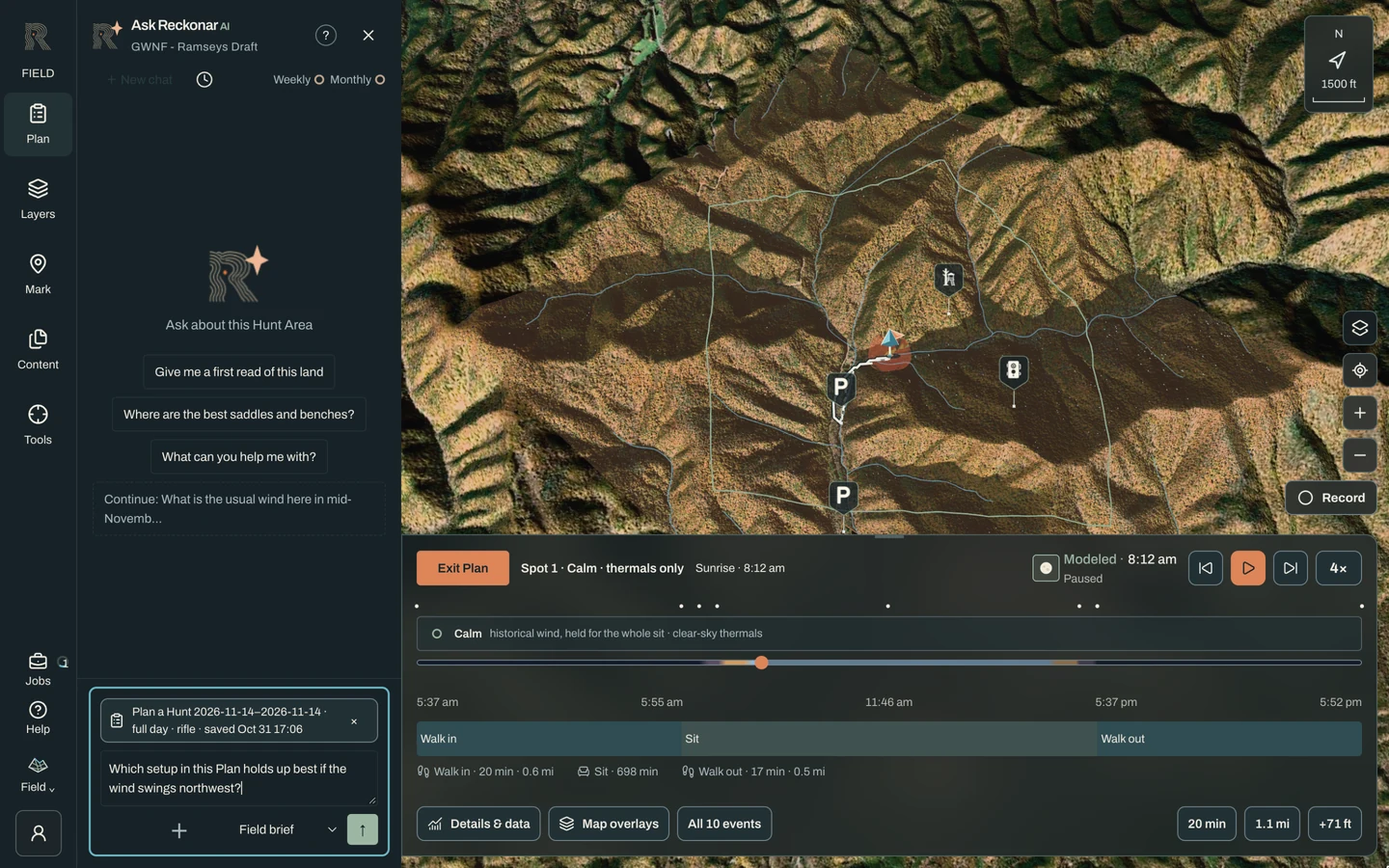
The Plan dropdown beside the question box starts at No plan, which is right for questions about the terrain and your Marks. To discuss a Plan, choose it there; Reckonar previews it on the map so you can confirm it is the right one. Looking at a Plan in Field does not select it for Ask; only this dropdown does. You do not need to pick Marks. Every Mark you are allowed to see in this Hunt Area is included automatically, whether or not it is shown on the map.
Set the depth and check your allowance
Answer depth offers Field brief, the compact default, and Detailed strategist analysis, which goes deeper and uses more of your allowance. The Weekly and Monthly rings show what is left: a full ring is unused and an empty ring is used up. On a desktop, hover a ring to see when it resets. Reading saved answers is free.
Ask a good first question
Ask about this ground and a decision you face. “Which setup would you choose for a northwest wind, and why?” works well with a Plan selected. Without one, try “Which saddles and benches here are worth scouting first, and why?” Type in the question box and choose Send, or press Enter; Shift and Enter adds a line. The starter buttons, such as Give me a first read of this land, send at once and use allowance.
Follow the activity
While the answer comes together, a progress line names each step. Activity lists the sources Reckonar read and the checks it ran. That is a record of the work, not hidden reasoning. The answer appears only after its references are checked against your saved data. Choose the stop button to cancel; you are not charged for a stopped answer.
Use context cards and layer buttons
References in the answer are context cards: a small glyph and color tied to a place. Select one and the matching place lights up on the map in the same color. A dashed outline is an AI sketch, a hypothesis rather than surveyed ground. A layer button, such as Bedding, turns on that layer for the mounted view without running new analysis; if it cannot open, it says why. The map index, Ask with a count, lists every place in the answer, and the emphasis menu switches between Ask, Together and Plan.
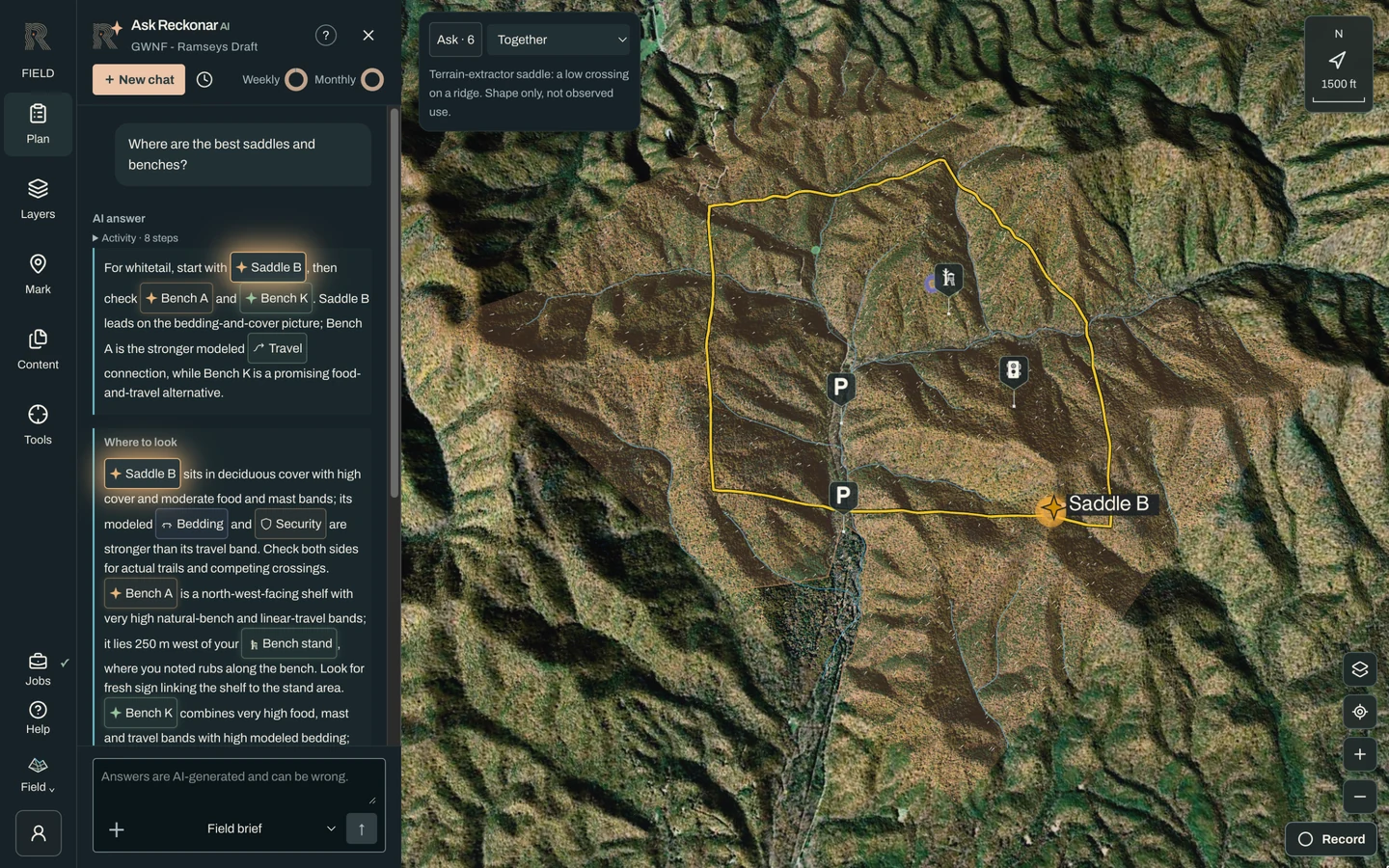
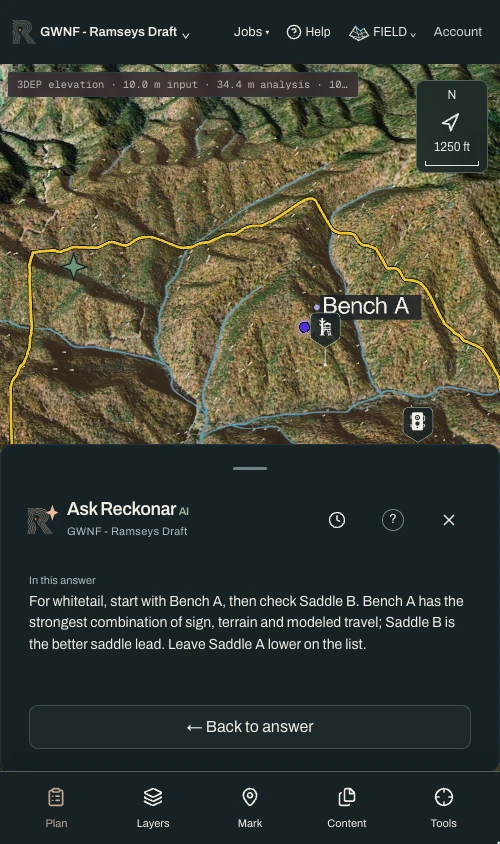
On a phone, selecting a card shows the map with the paragraph it came from below it. Choose Back to answer to return to the same spot in the conversation.
Ask a follow-up
Keep going in the same chat. “What would change if the wind shifts east?” builds on what was already said. The suggested next questions under the latest answer send as soon as you choose one. Changing the map later does not rewrite the evidence behind an earlier answer. New chat starts fresh and keeps your unsent question and Plan choice.
Find the conversation again
The history button, a clock, lists your conversations for this Hunt Area. Choose one to reopen it. Delete this conversation… removes the chat and its record; your map content stays. Your Camp never sees your conversations, even in a Hunt Area you share with them. Reckonar staff may read them to fix problems and improve answers.
Rate the answer
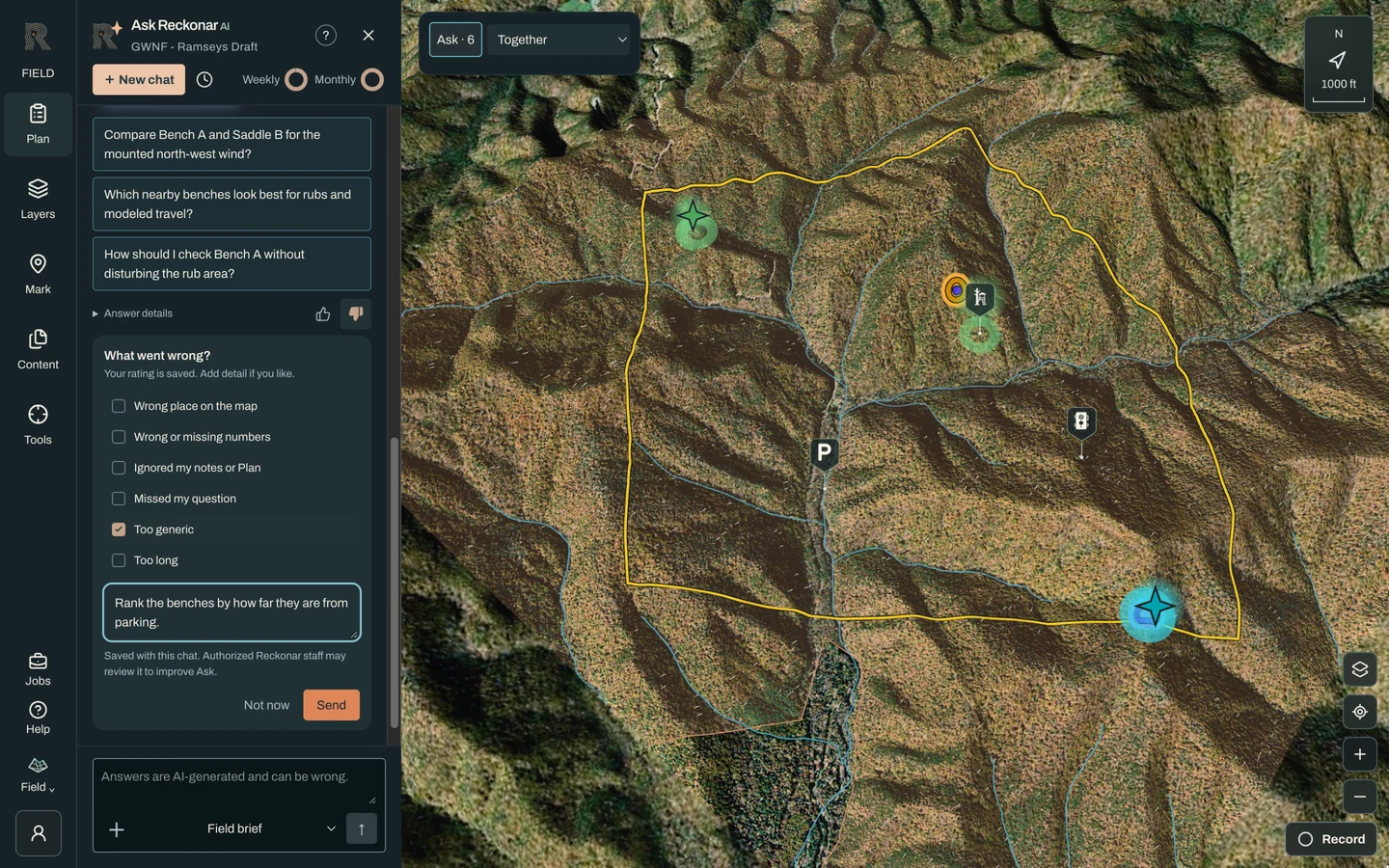
Under every finished answer, Helpful and Not helpful sit to the right of Answer details. One tap saves your rating. Not helpful also asks What went wrong? with a few optional reasons and room for a comment. The note is saved with this chat, and Reckonar staff may review it to improve Ask. Tap the other thumb to change your mind, or tap the one you chose to remove it.
A failed answer says so and tells you that you were not charged. Tap Report this under it to send us the details in one tap. Nothing retries automatically, so you decide whether to ask again.
- Answers are AI-generated and can be wrong. Check any place it suggests on the ground before you rely on it.
- Ask reads existing analysis. It does not run a new Plan, change your Marks or know anything live about deer.
- Hiding a layer or a pin changes the map only. Ask can still use that content.
- Ask needs a connection and available allowance.
- The more real observations you record, the more Ask has to work with. A Mark you never added is a fact it cannot use.