A Hunt Plan is Reckonar’s read of one Hunt Area for the dates you choose: where to sit for each likely wind, how to walk in and out, and what each choice is likely to cost you in disturbance. In this guide you will fill in the form, follow the build, open the saved Plan, compare its setups and play the day on the terrain. First, mark your stands and at least one Parking waypoint (see Mark and Camps). Saved tree stands and ground blinds are included automatically.
Open Plan a Hunt
In Field, choose Plan. Under Create a Plan, choose Plan a Hunt. Place Trail Cameras and Pattern a Target Buck are listed but marked “Not available at launch”. The form has two groups, When and Setup.
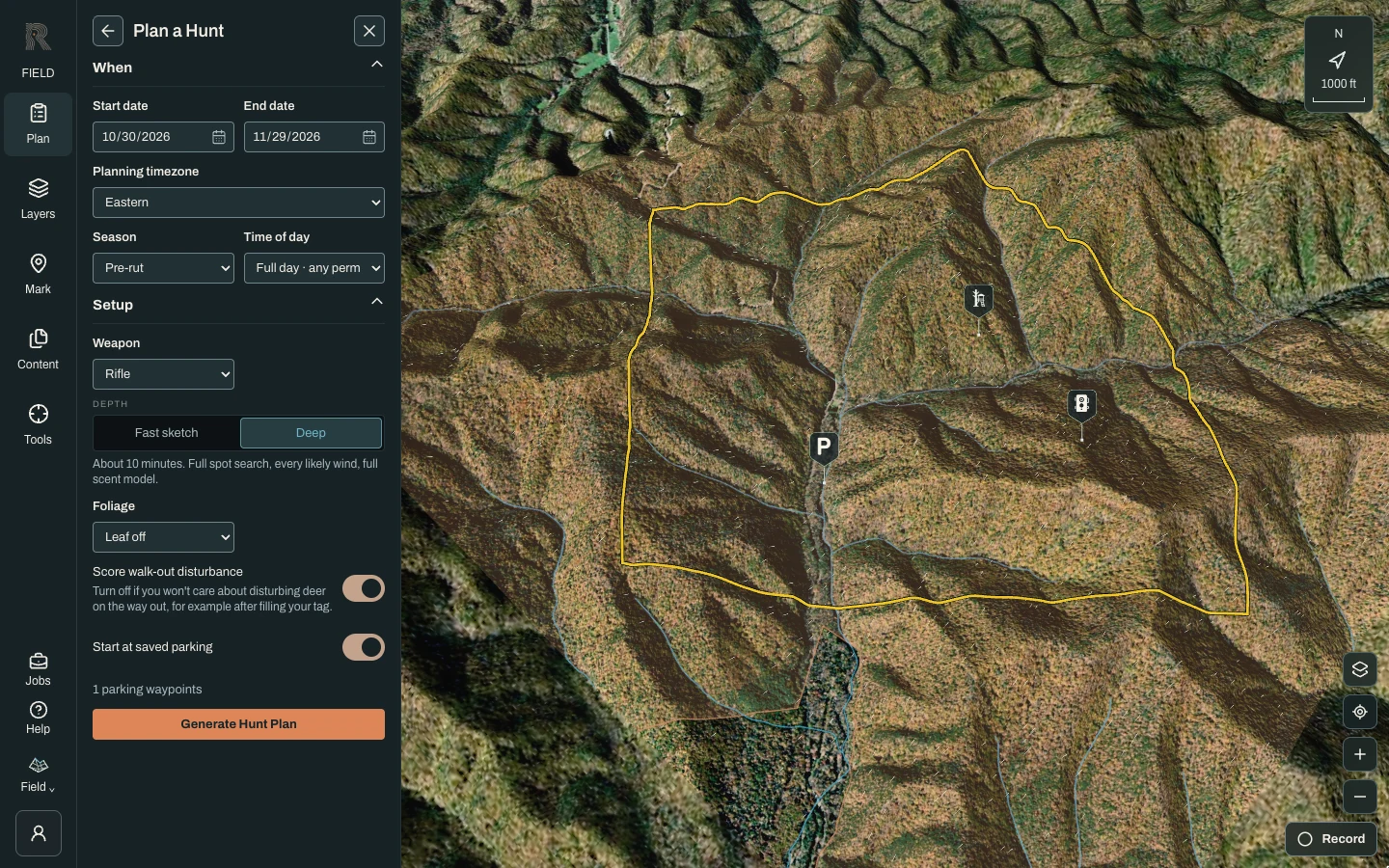
Choose when you will hunt
Set the Start date and End date, then check Planning timezone, Season and Time of day. Time of day defaults to Full day · any permitted hunting time; you can narrow it to Morning, Midday or Evening. The season follows your dates until you change it. These choices decide which weather history the Plan studies: the same calendar window across past years, not a forecast for one morning.
Describe your setup and access
Under Setup, pick your Weapon; it defaults to Rifle. Depth offers Deep, the default, which takes about 10 minutes and searches every likely wind, or Fast sketch, a quicker pass with fewer spots and winds. Check Foliage. Leave Score walk-out disturbance on unless you will not care about bumping deer on the way out, for example after filling your tag. Start at saved parking starts every walk-in at your saved parking waypoints, and Generate waits until you have one. Turn it off to start from the edge of the area instead.
Generate and follow the build
Choose Generate Hunt Plan (or Generate fast sketch). Progress shows in Field and in Jobs, stage by stage, from loading weather history to evaluating every parking start. Keep this browser tab open on this Hunt Area until the Plan opens; you can use other panels or switch to Scout meanwhile. A failed build stays in Jobs for you to read, and nothing retries on its own.
Open the saved Plan
When the build finishes, the new Plan opens on the terrain. To return to it later, choose Plan, find it under Saved Plans and choose Open Plan, or open Content and filter by Plans. Generating again saves a new Plan; it never edits an old one.
Start with Top plans, then choose the wind
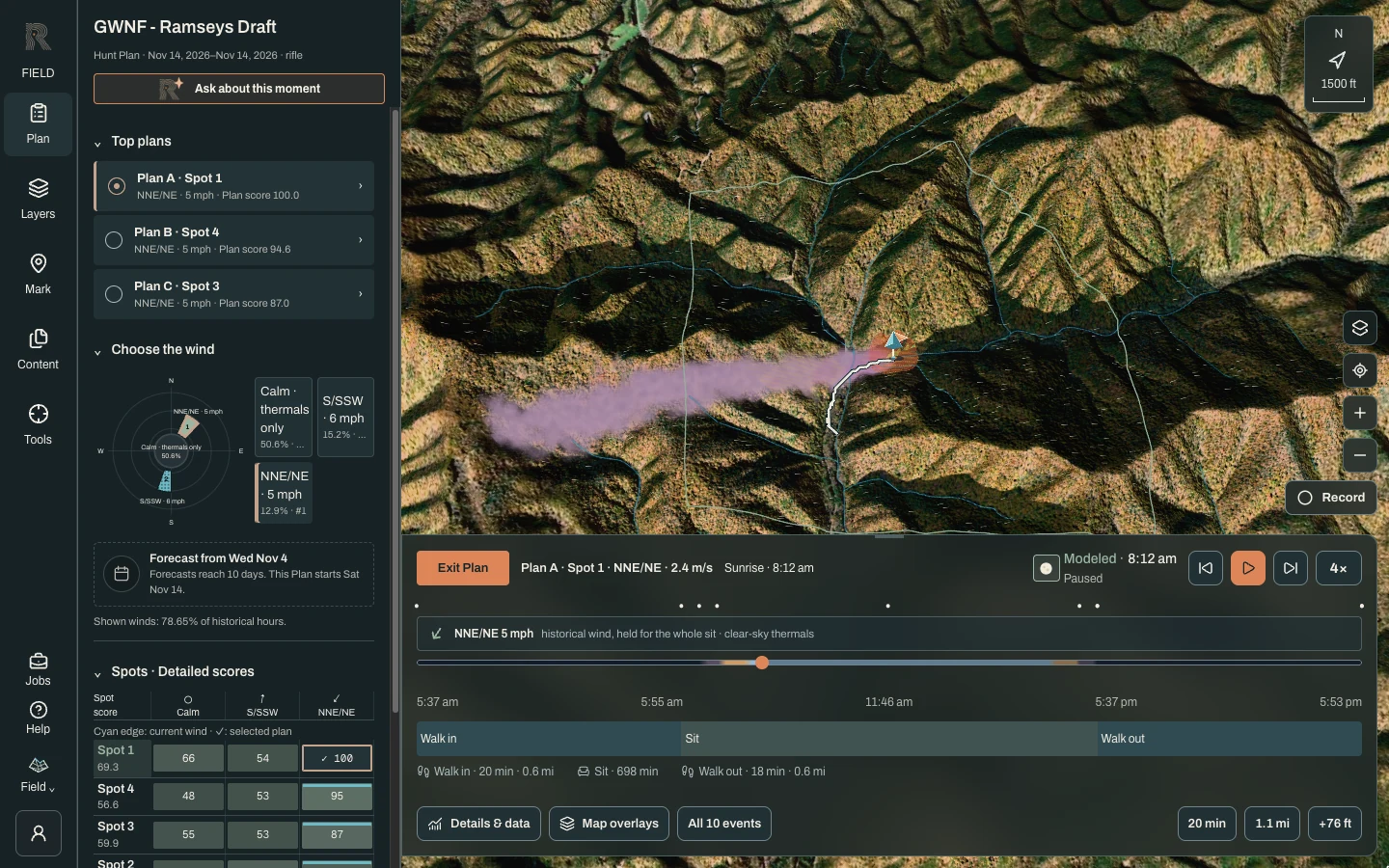
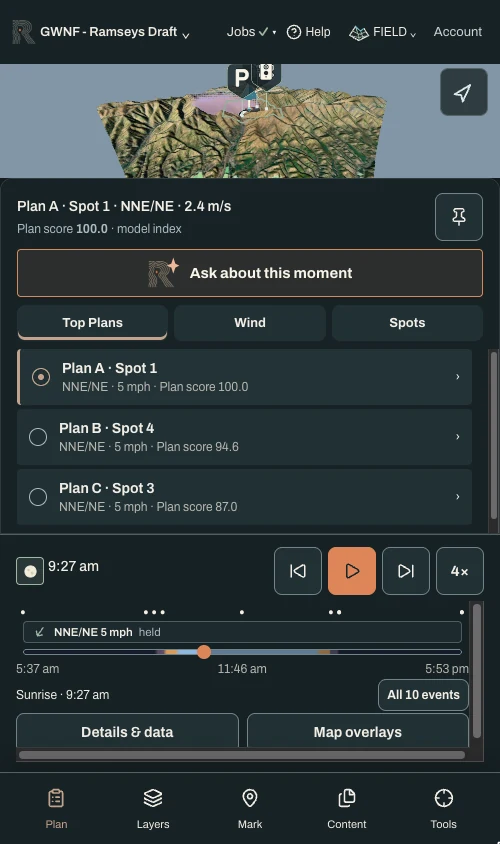
Top plans lists up to three setups, Plan A, Plan B and Plan C. Each pairs a spot with a wind and shows its Plan score, a relative model index, never a probability. Under Choose the wind, petal length on the rose shows how many historical hours had that wind, and the number shows the best spot for it. Select a wind to see its best setup. “Stay out” means even the best setup scores near zero in that wind, so plan to hunt elsewhere that day. If your hunt starts within 10 days, a Forecast choice may also appear; it is not part of the Spot score.
Compare the spots
Spots · Detailed scores lists every spot with its Spot score and a Plan score under each wind. Your own stands appear under Your stands. Select any cell to load that spot in that wind; “N/M” means not modeled. On a phone, the same choices sit under the Top Plans, Wind and Spots tabs.
Play the day
The dock along the bottom is the day’s timeline, split into Walk in, Sit and Walk out. Choose Play, set the speed to 1×, 2× or 4×, or drag the scrubber. Select a phase or an event marker to jump to it. The first Play can wait while Reckonar prepares the map frames. A status chip reads Clean, Stay out or “Exposure not fully modeled”; select it to jump to the worst moment. On a desktop, the footer shows the walk-in time, distance and climb.
Turn overlays on and off
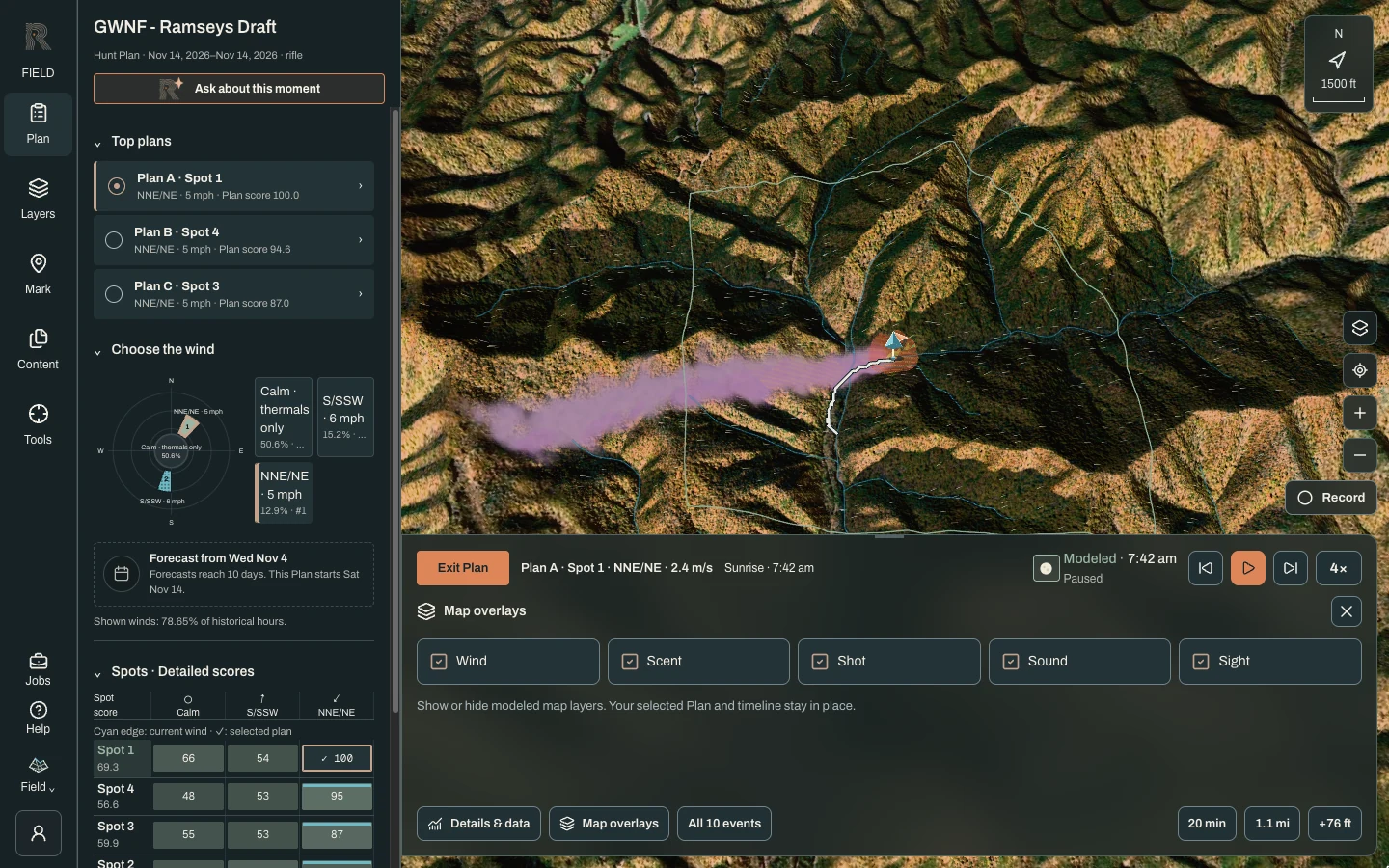
Choose Map overlays to show or hide Wind, Scent, Shot, Sound and Sight. All five start on. Scent, Sound and Sight show how the model expects your scent, noise and visibility to reach deer as you move and sit. Shot shows modeled lines of sight from the setup. When you are done, choose Exit Plan to return to current conditions. The Plan stays saved.
- A Plan is a seasonal draft built from weather history. It is not a forecast and it does not update itself when the weather changes.
- Plan, Spot and disturbance scores are relative, uncalibrated model indices. They compare options on this ground; they do not predict a harvest.
- Generated spots are modeled. Walk them before you hang a stand, and treat a route as a suggestion to verify, not a cleared trail or legal access.
- Shot is not a safe-shot certification. Identify your target and what lies beyond it every time; a backstop is never verified, and woods do not count as one.
- Fair chase by design: Plans are made before and between hunts. Nothing here tracks a deer in real time.